
If you have courses that are in different languages, you can now associate a language to the course within the course settings. This will allow you to filter down to specific languages within the course library to easily find content associated with a particular language.
Step 1
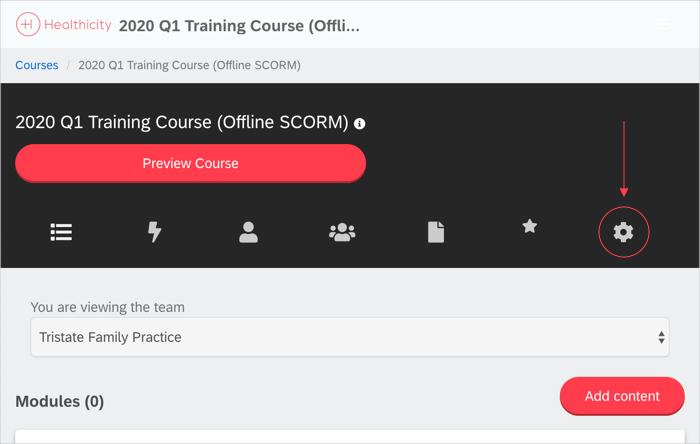
Once a course has been added, navigate to the course settings
Step 2
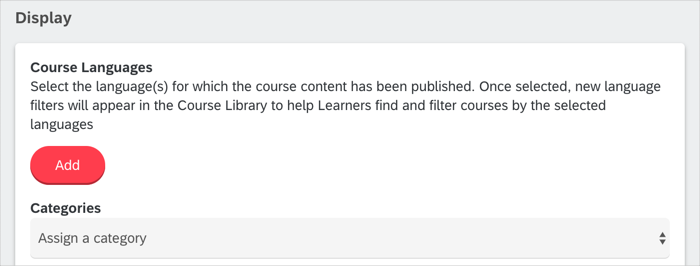
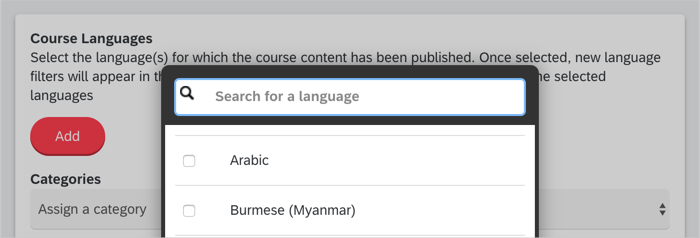
Navigate to the display section, click 'Add' to associate a language and then click the checkbox next to the appropriate language
Step 3
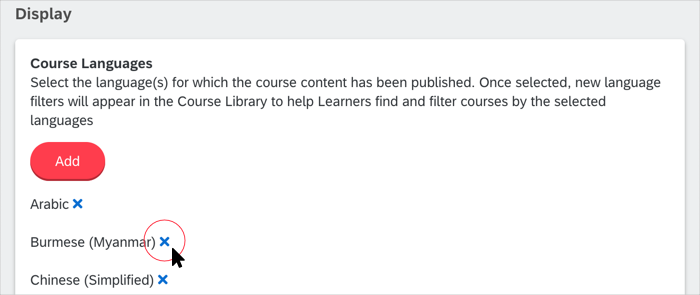
If a language has been added in error, simply click the 'x' next to the language
Step 4
Once your languages have been added, you can filter by the language in the course library
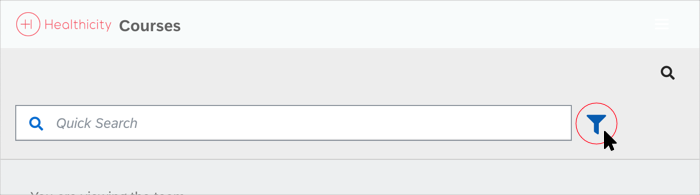
- Navigate to Courses and click on 'Add Filter' next to the Quick Search option
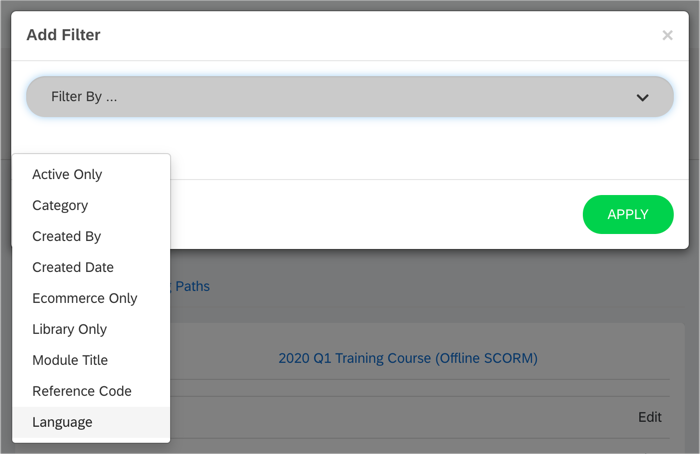
- Select Language within the 'Add Filter' option, then click 'Apply'
- Select the language you want to filter the courses by and the course library will be automatically filtered
Comments
0 comments
Please sign in to leave a comment.