
How to Add a Survey to a Course
Step 1.
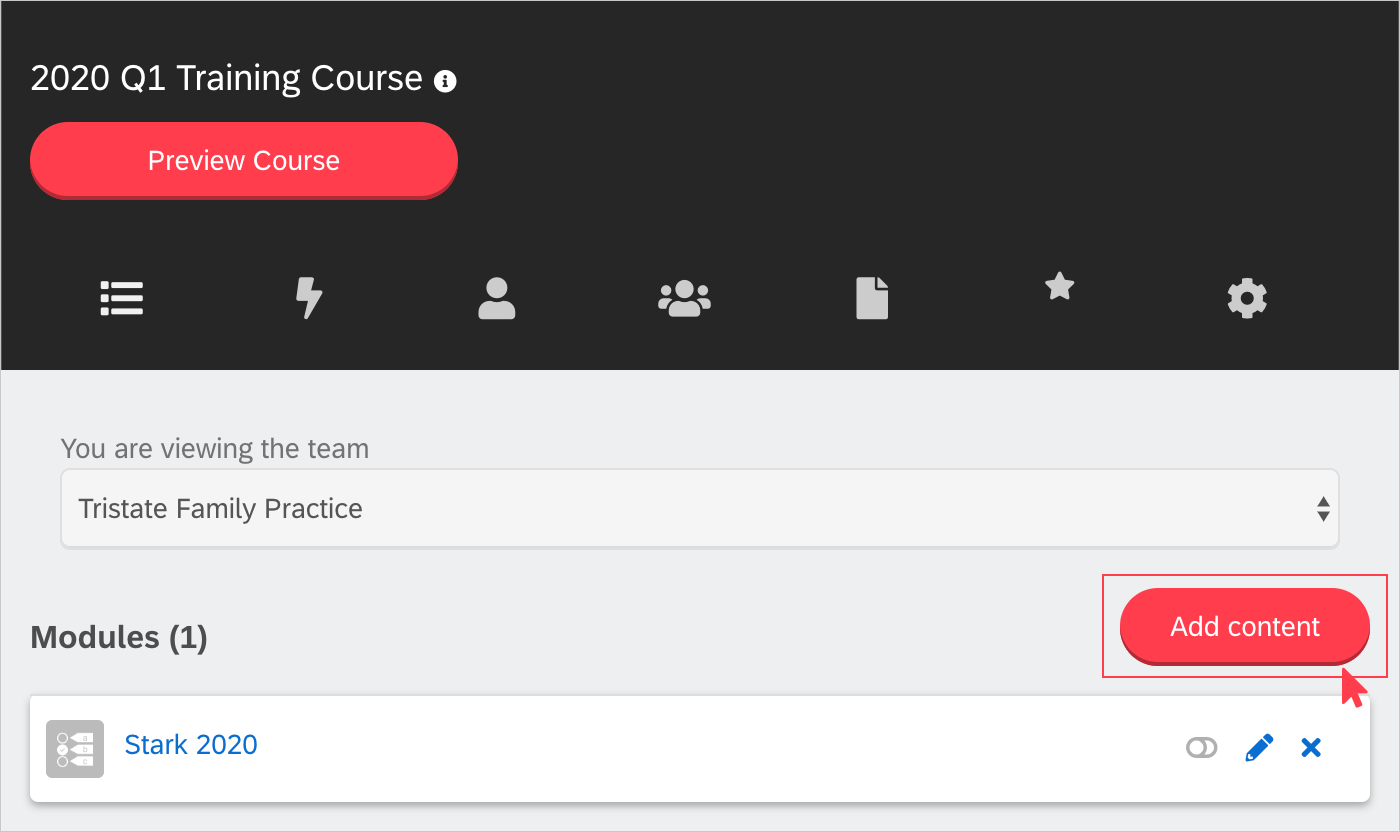
From the course page, select 'Add Content.'
Step 2.
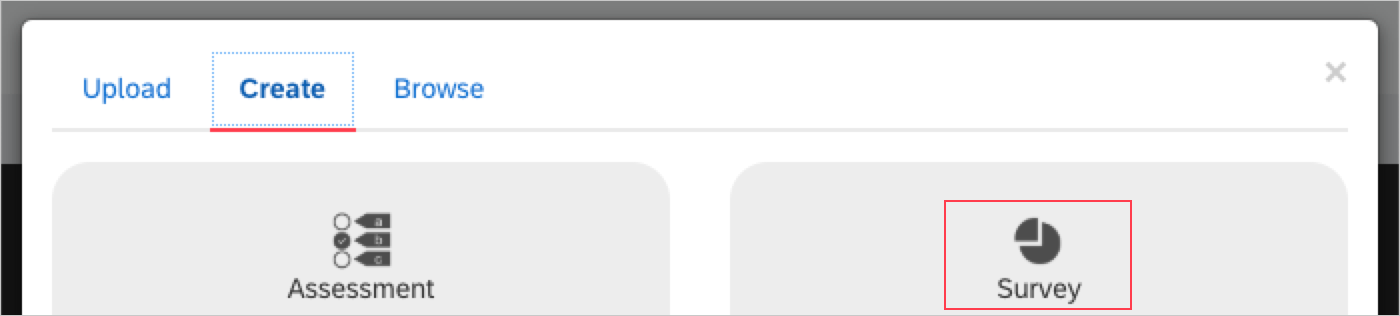
Click 'Create' on the top of the modal. From here you will have a number of options to choose from.
Step 3.
Select 'Survey,' add a title and a description then click 'Save.'
Please note: you will have the same options when adding any other content when adding an assessment. The information on these options is within this article.
Step 4.
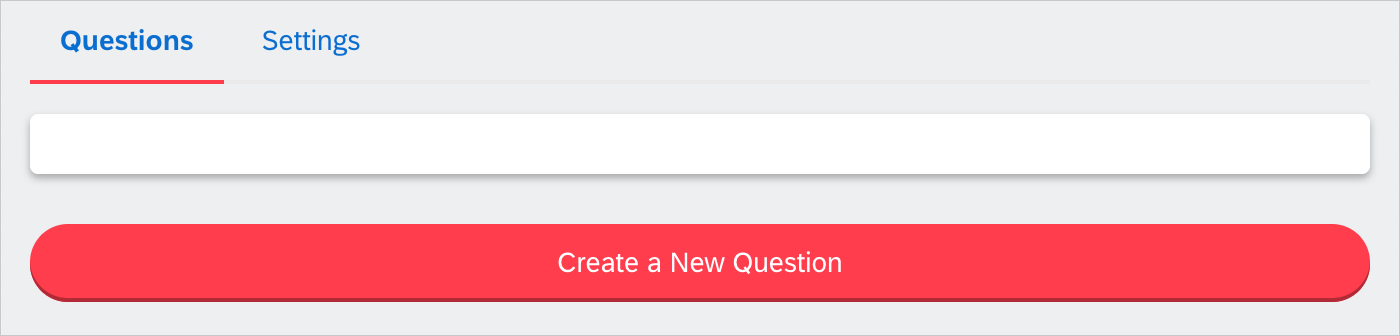
To add questions to the survey, click 'Create a New Question.'
Step 5.
Select from the question type options below:
- Multiple Choice (Single Answer, editable)
- Multiple Choice (Multiple Answers, editable)
- Free Text Comments (1000 character limit, extra characters will be truncated, not editable)
- Rating/Ranking (1 to 5, editable)
Helpful Tips When Adding a Question:
- Each question includes the following options:
- These changes will mark this course as a new version: checking this box will make the course a new version and if a user has completed the course previously, the course will be reassigned until the survey is completed.
- Mandatory to answer this survey question: checking this box will make the survey question required.
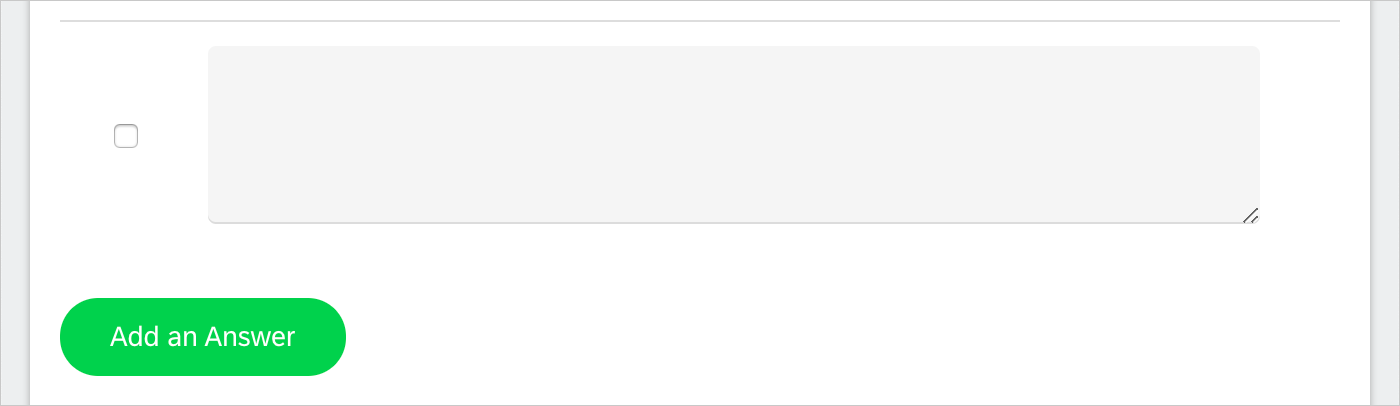
- If you need additional answer options, click 'Add Answer'
- Once all of your questions have been added to the survey, you may reorder them by clicking on 'Reorder Questions' and then dragging/dropping to the desired order
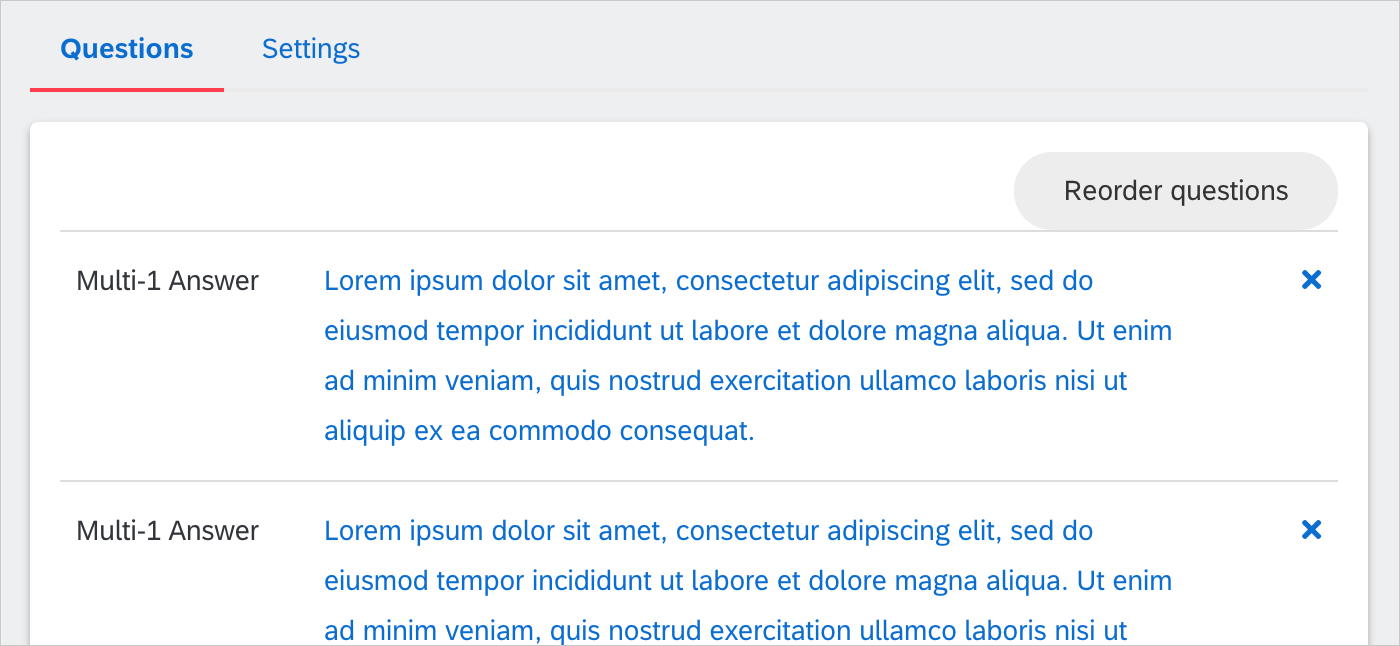
Survey Settings
Within the settings for a survey, you can do the following:
- Edit the title of the survey.
- Add a description to the survey.
- Make the survey active/inactive.
- Add a survey code.
- Retrieve an external link for the survey.
- Send an email to the learner once the module is completed
Comments
0 comments
Please sign in to leave a comment.