
Please Note: this is a Premium account feature and may not be available for your account type.
Settings
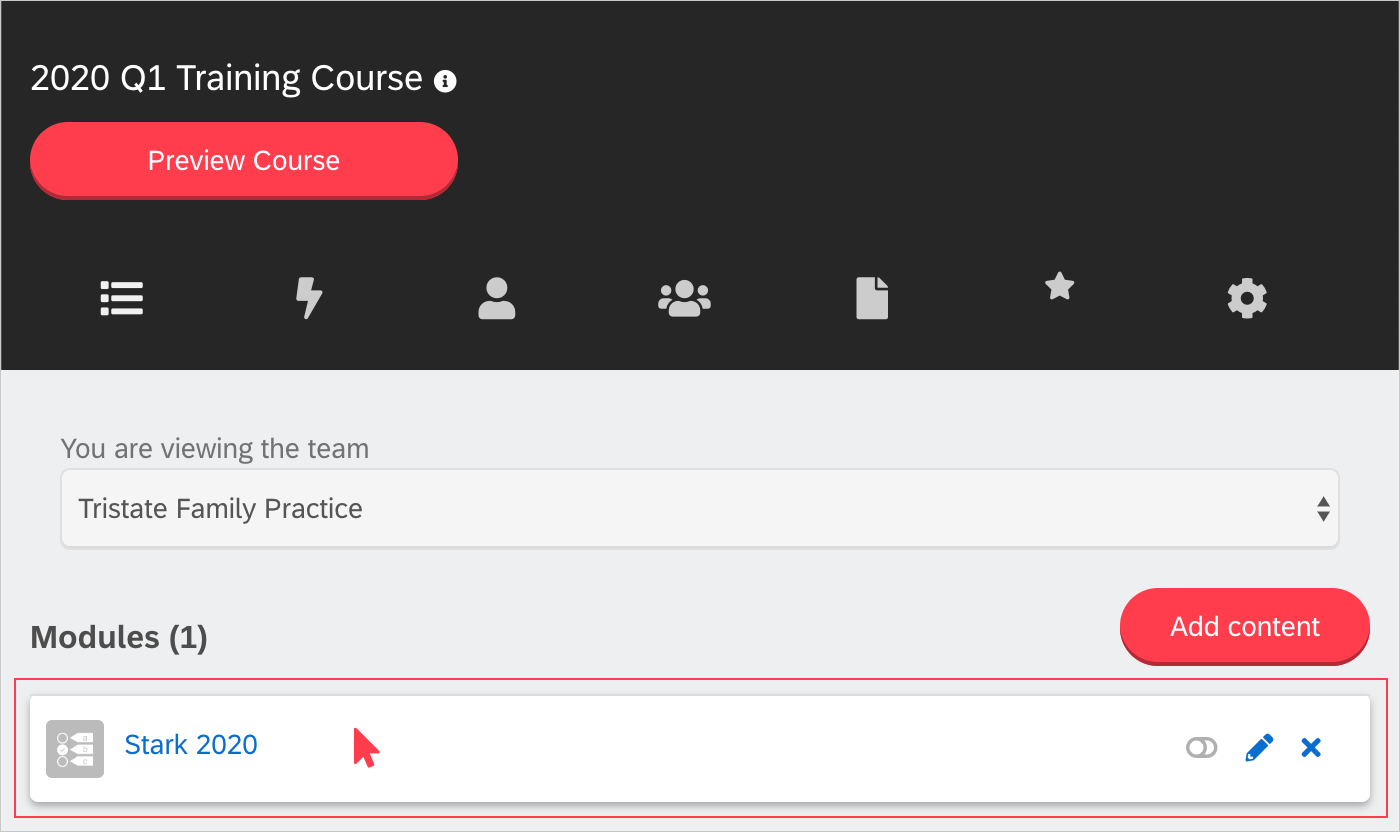
Once an assessment is created and associated with a course, the settings can be updated.
From your selected assessment page, go to 'Settings.'
Here you will discover options available for your assessment. Settings and their descriptions are listed below:
- Code: Set the assessment code
- Hide the 'Next Module' button
- Show the 'Previous Question' button (not available with a question group)
- Passmark: Required percentage the learner needs to reach in order to pass the assessment
- Time Limit: Time allotted for learners to spend on the assessment (for no time limit set to 0 hours and 0 minutes)
- Nonstop Timer: A timer that continues even if the learner leaves the course
- Lock Assessment: Locks an assessment after a certain amount of a user's attempts to complete (pairing this setting with the time limit setting can be beneficial to keep users from looking up answers or changing them later)
- Automatically Unlock: Automatically unlocks an assessment after a certain amount of days from being locked out
- Randomize Answers : All answers for multiple choice questions will be randomized each time a learner takes the assessment.
- Require Learners to provide an answer before proceeding to the next question.
- Use Question Pool – Set how many questions from the list of questions to be shown to each learner. Each learner will see a different set of questions in a different order. Using a pool of questions may discourage collaboration between learners.
- Review Answers – If this is checked, when a learner finishes all the questions in the assessment they will be able to review and change their questions.
- Send notification email on user completion – When checked an email will be sent when any learner completes the assessment. This is beneficial when marking is required and during deadlines.
- Notification Email – This is the email address the notification will be sent to when the Send notification email on user completion box is checked
- Display of results – Set the assessment to show the learner which answers they got correct and incorrect on their assessment to show results, never show results, or only show results if assessment is passed or max attempts are reached.
- Hide Answers – If checked, the learner will not be able to view the correct answers in their assessment results. The results will only show if the display of results is set.
- Send an email to the learner once the module is completed.
Alerts
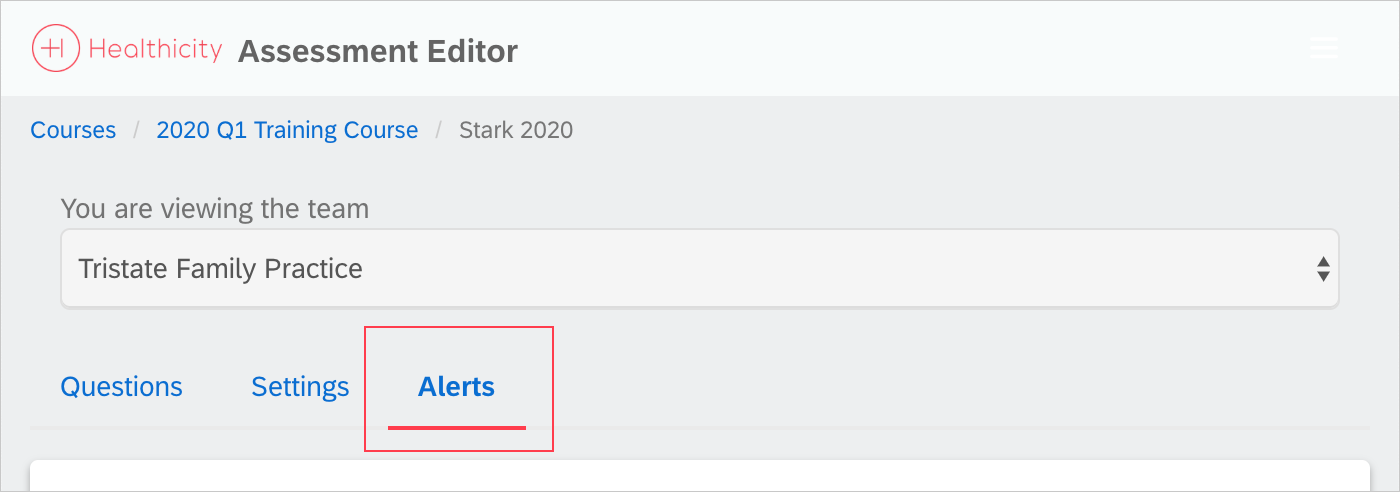
Alert administrators that learners have completed an assessment. This may be beneficial if a free text question was added and needs marking or if additional work needs to be done outside of Litmos.
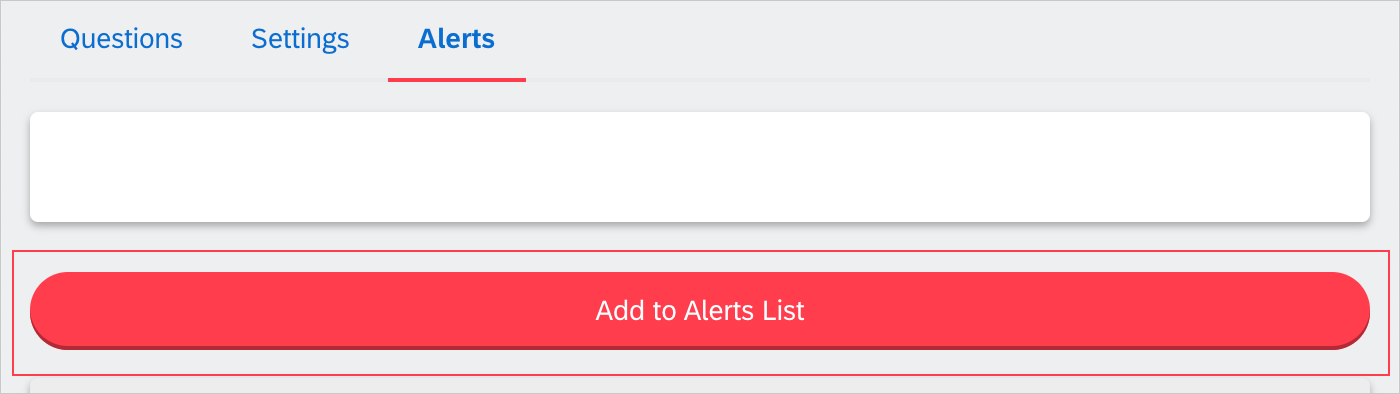
To add an alert, navigate to your selected assessment page, go to 'Add to Alerts List.'
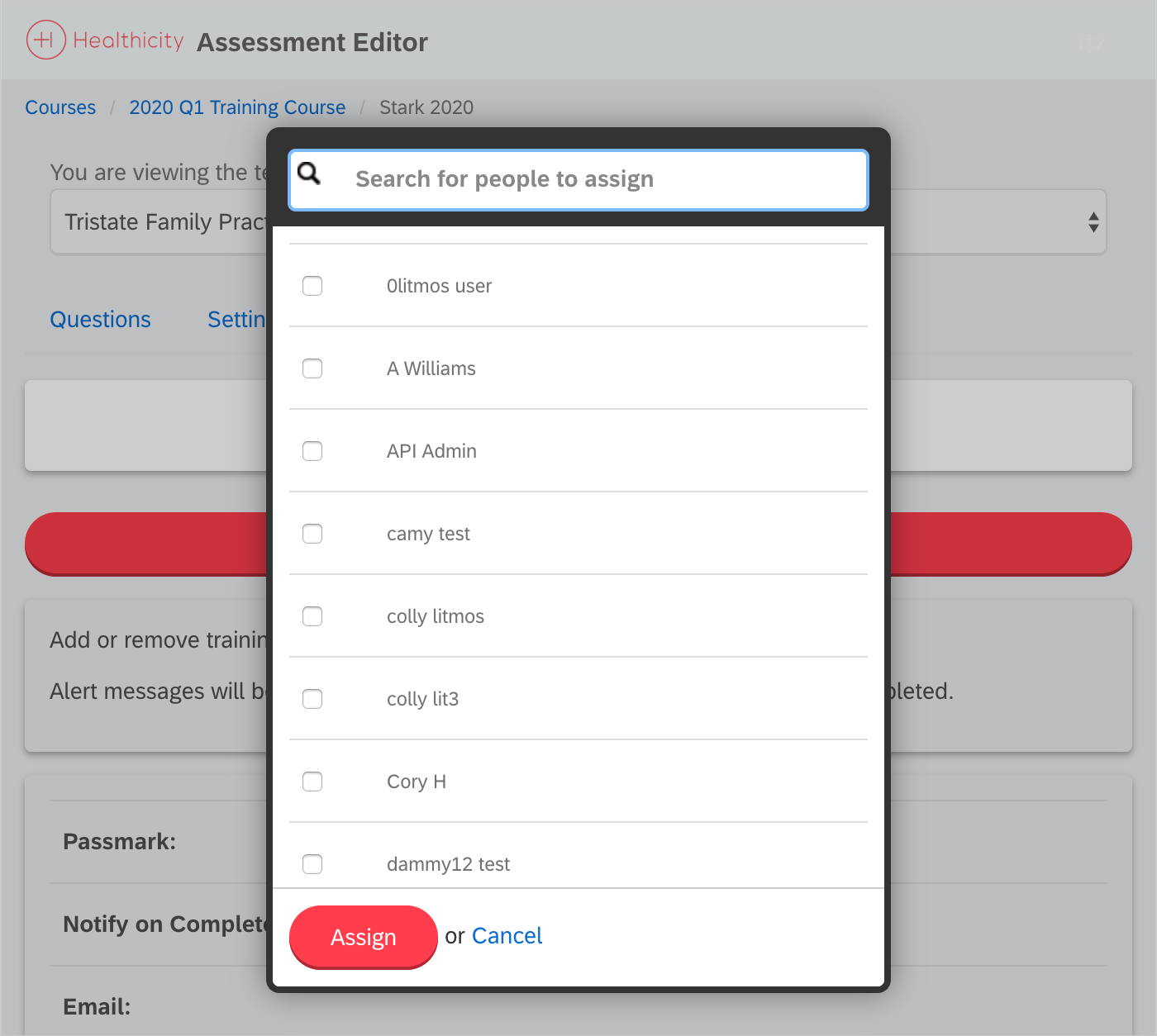
Select individual(s) to be alerted when an assessment has been completed. Click 'Assign.'
Comments
0 comments
Please sign in to leave a comment.