
Adding Assessments (quizzes) to Courses
Step 1.
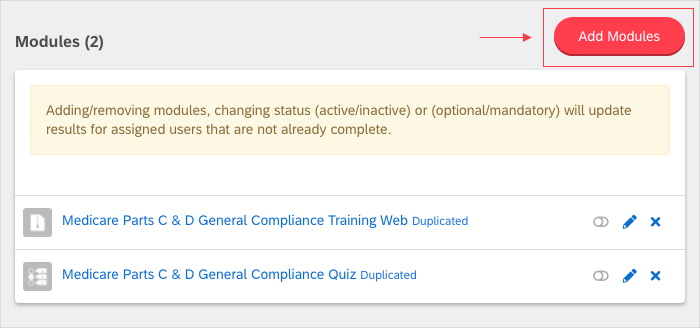
From the content section of the course, click 'Add Modules.'
Step 2.
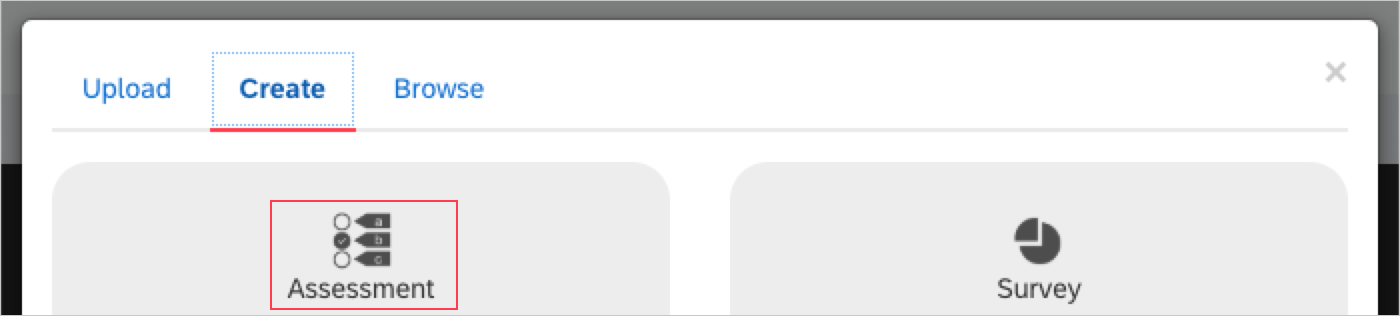
Click 'Create' on the top of the modal. From here you will have a number of options to choose from.
Step 3.
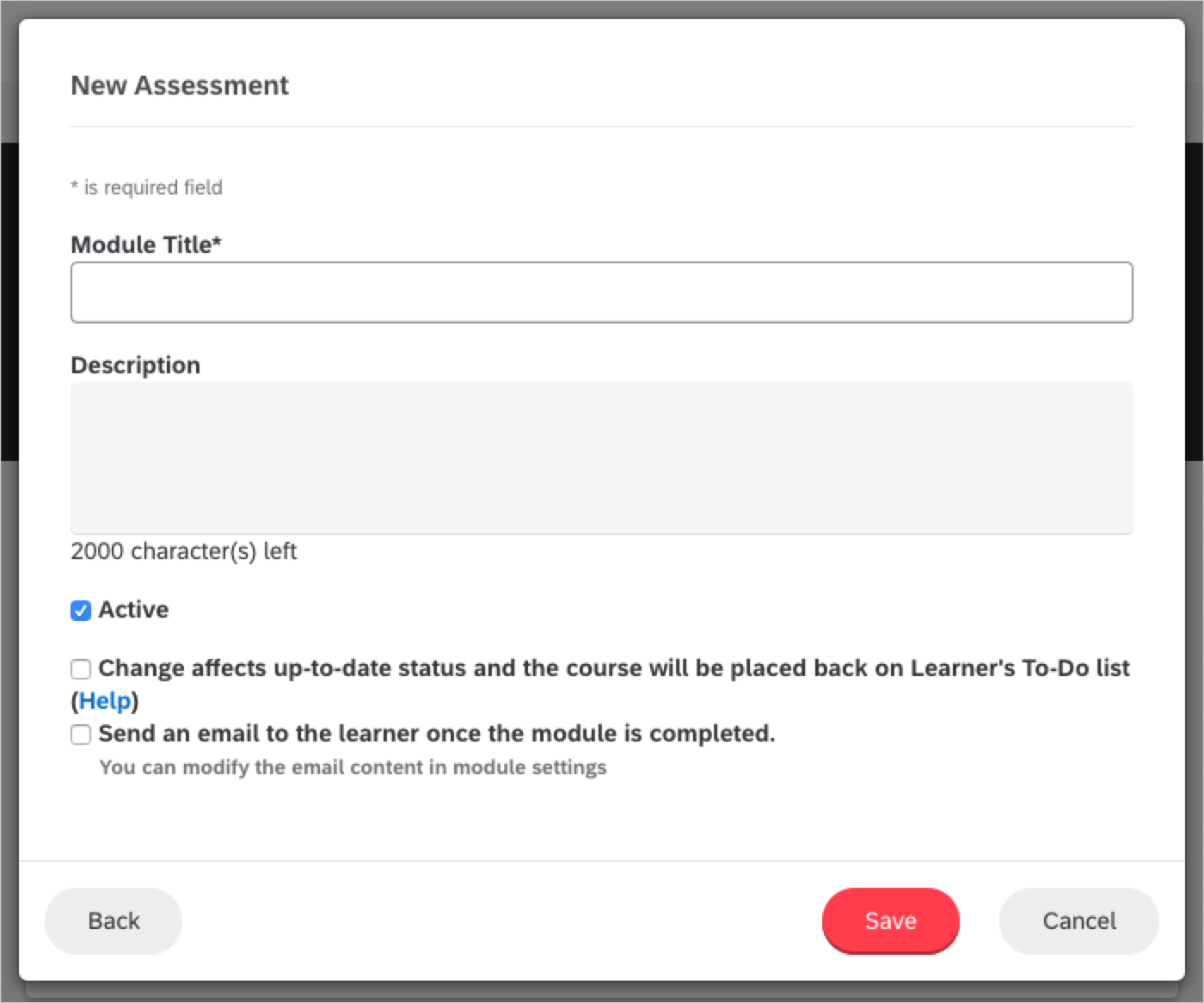
Select 'Assessment,' and add a title and a description.
An assessment (quiz) is intended to ensure that your learners read and understood the course materials.
Click 'Save.'
Please note: you will have the same options when adding any other content when adding an assessment. The information on these options is within this article.
Adding Assessment Questions in Bulk
If you have a quiz built outside of the Training Center that you want to include, you can import it easily into the system.
Step 1.
Create a CSV that includes questions to upload to the assessment. We recommend using the sample CSV to get started.
Step 2.
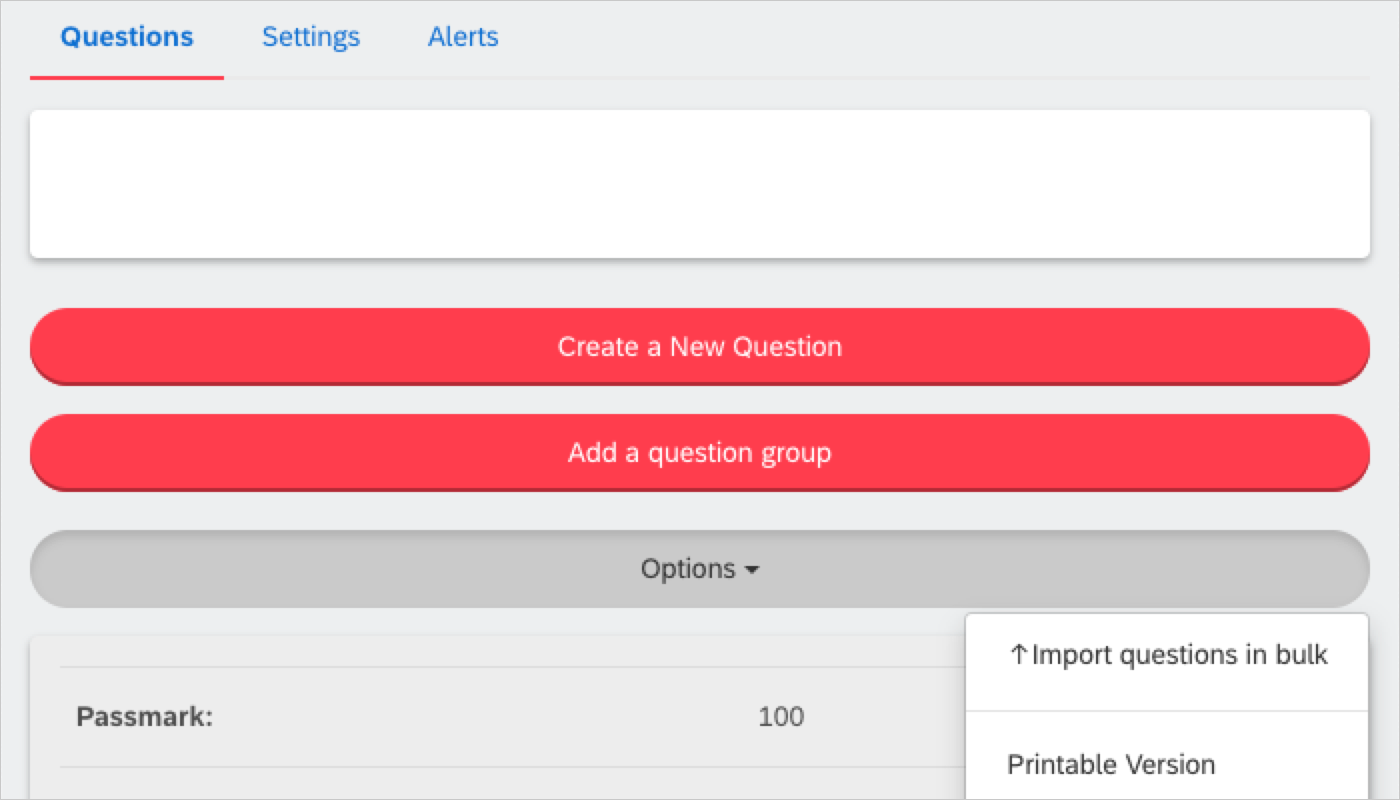
Click on the options menu and select 'Import Questions in Bulk.'
Step 2.
Once your CSV is created, select on 'Choose File' and then click 'Upload.'
Please Note:
- If your first row contains column headers, click the checkbox to indicate
- If you want to specify a language for the assessment, you can do so by using the dropdown menu
Adding Questions Individually
Step 1.
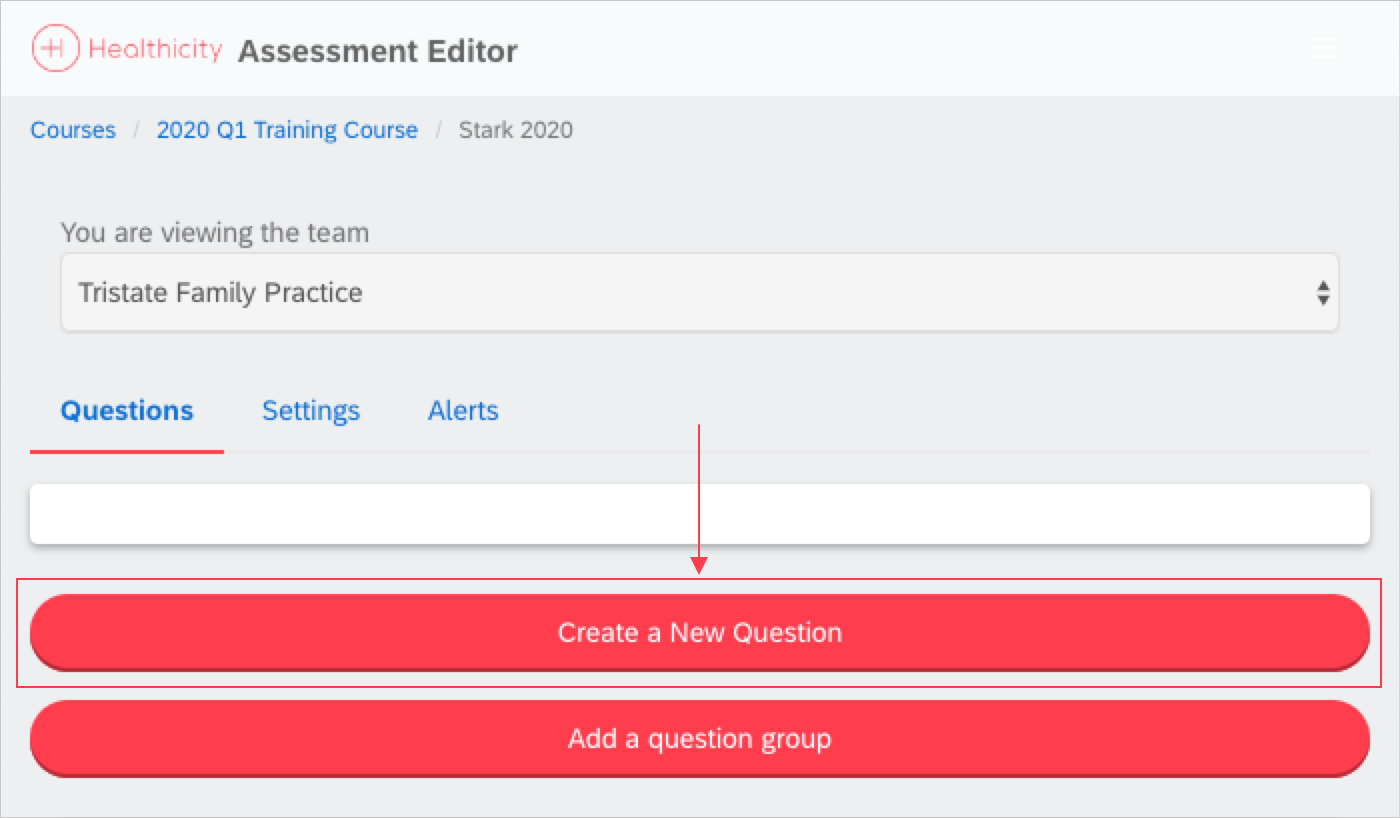
Select 'Create New Question.'
Step 2.
From here, you will be able to add questions to the assessment. There are many options with the question type, outlined below.
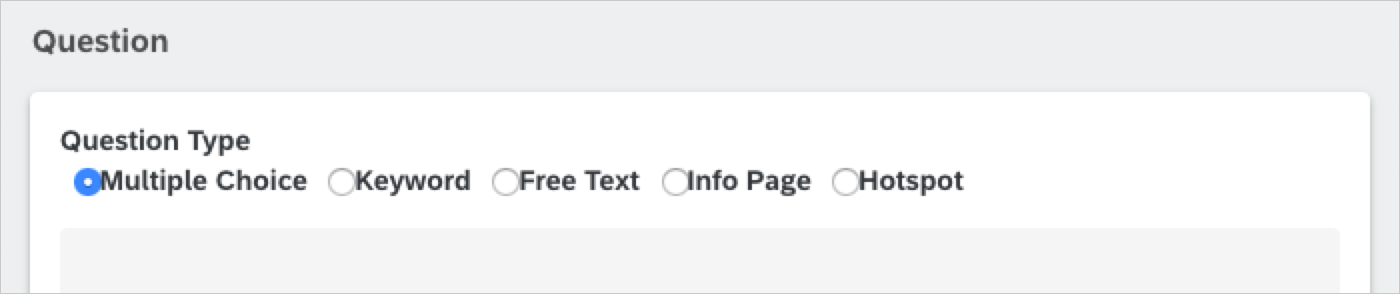
Question Types
- Multiple Choice – Giving the learner the option of one or more predetermined answers. The features available:
- Text – Type the Question within the box labeled.
- Answers - Add an unlimited number of possible answers. Enter the Text for each answer and mark if the answer is correct by checking the box next to the correct answer.
- Show answer Hint? – Select if you would like to show the learner the correct number of answers with the question.
- The answer must be correct to progress to the next question – When checked it will force the learner to select the correct answer before they progress.
- Show feedback information if answered incorrectly – When checked a box will appear below this setting (shown below) to give the learner feedback if the answer was incorrect.
- Include an Image – Add an image to show up on the question.
Multiple_Choice.PNG
- Keyword – The answer is typed by the learner in a short answer format. The system looks for keywords predetermined by the creator of the question. Is not case sensitive and learners need to type in only one of the correct keywords to be correct. The features available:
- Text – Type the Question within the box labeled.
- Answers – Add an unlimited number of keywords needed to be typed into a text box in order to get the question right. Only one keyword must be typed for the learner to get the question correct. Enter the keywords within the Answer text field.
- The answer must be correct to progress to the next question - When checked it will force the learner to type in at least one correct answer before they progress.
- Show feedback information if answered incorrectly – When checked, a box will appear below this setting (shown below) to give the learner feedback if the answer was incorrect.
- Include an Image – Add an image to show up on the question.
- Free Text – Like Keyword, the answer is typed by the learner in a short answer format. But unlike Keyword, a user who is a Team Leader, Administrator or Account Owner, needs to mark the answer as either Correct or Incorrect and may give a comment. The features available:
- Text – Type the Question within the box labeled.
- Include an Image – Add an image to show up on the question.
- Info Page - It may be beneficial or necessary to insert pages of information in between assessment questions.
- Hotspots – Have your learners select specific “hotspots” on an image. Upload an image and chose the section(s) of the image the learner must select in order to get the question correct. There is no limit to the number of hotspots a single question can have; however, all hotspots must be correctly chosen for the learner to get the answer correct.
Please Note:- It is not recommended for Learners to take an assessment with Hotspots on a mobile device due to possible lack of accuracy to choose a correct spot.
- The image for the hotspot should not exceed 1100px wide in Horizontal layout and should not exceed 8900px wide in Vertical layout or the hotspot will not save correctly.
Custom Options
With each question type, there are several options available to customize the assessment, including:
-
- Please note, this is only available for multiple choice question types
-
- You can enter information into a checkbox when an answer is incorrect
-
- You can enter information into a checkbox when an answer is correct
Images & Video
As detailed above, images or video can be added to a question to provide further reference or support to a question.
- File formats supported are: .png, .gif, .jpg, .avi, .wmv, .mpg, .mov, .flv, .m4v, .mp4 with a Maximum file size of 1Gb
Other Helpful Tips
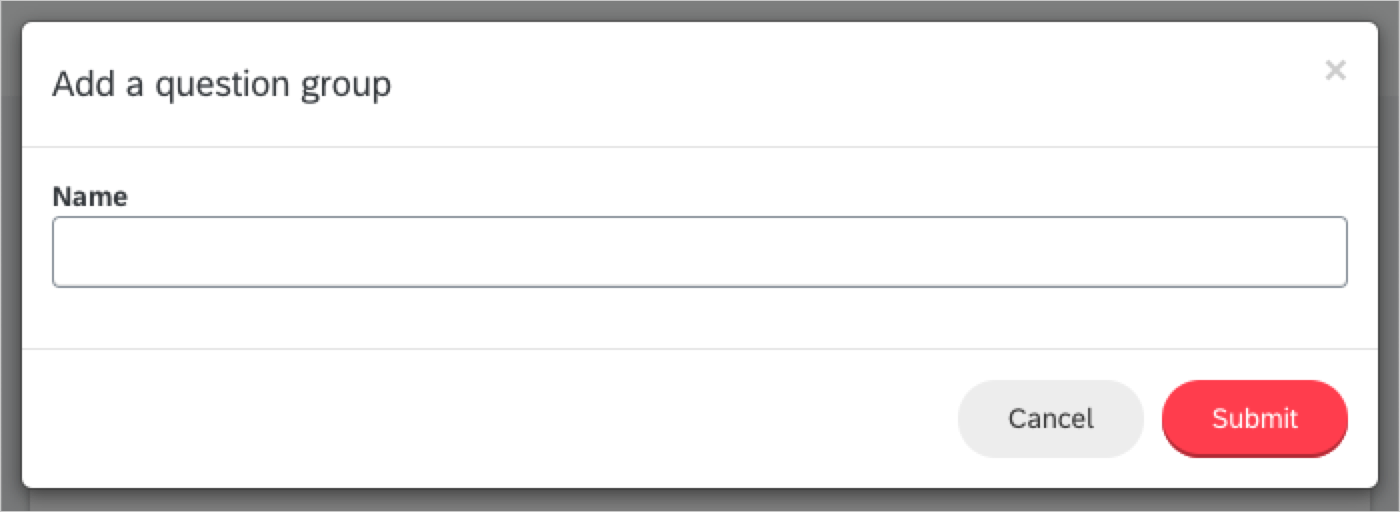
If you want your questions grouped together, click on 'Question Group' and then add questions to your assessment.
- Click on 'Add Question Group' and then add a name for the question group. Click 'Submit.'
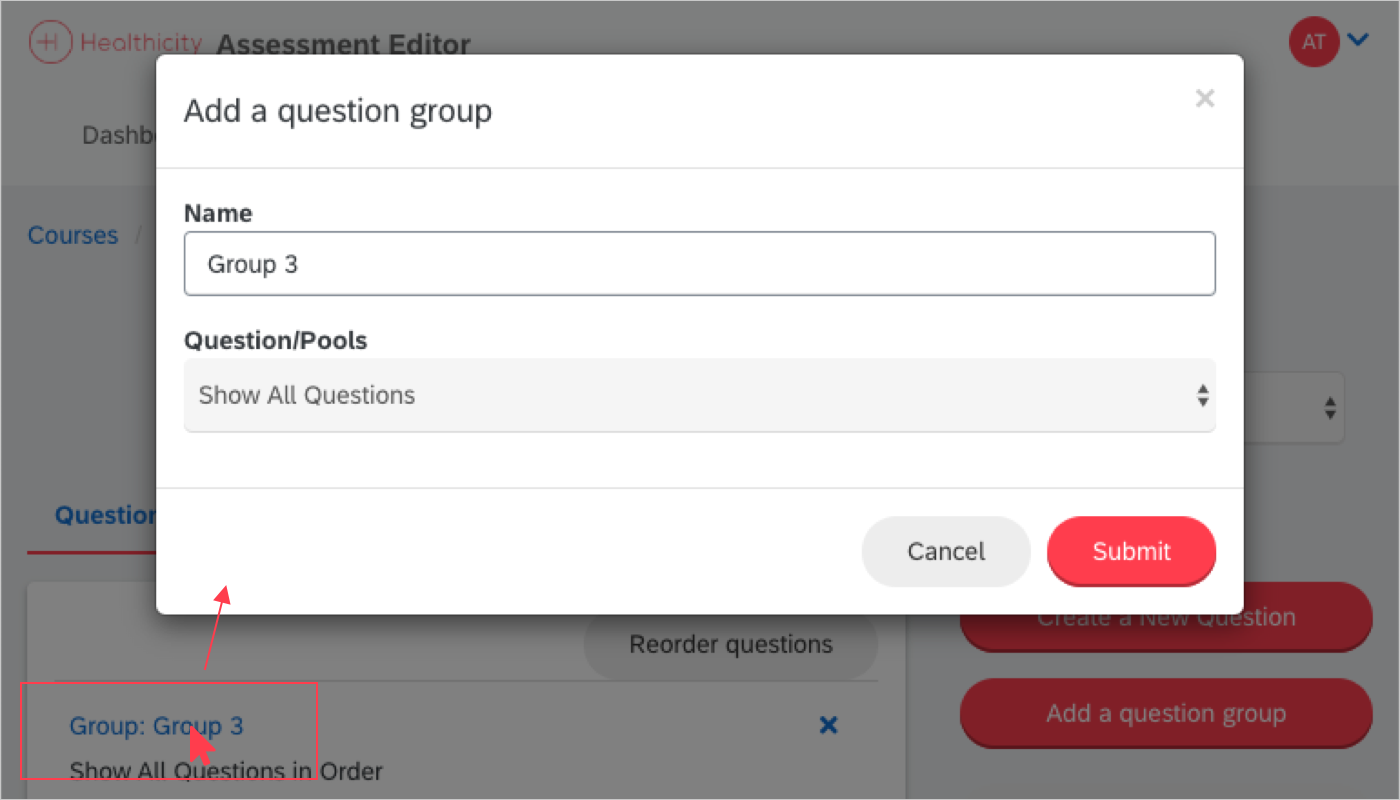
- If you want the questions to appear in a certain way, click on the question group in blue and you will be able to update the settings.
-
Questions/Pools Options:
- Show All Questions
- This will show all the questions to the user in the order indicated within the assessment.
- Show Questions in Random Order
- This will show all questions to the user in a randomized order.
- Use Question Pool
- When you use a question pool in an assessment only a certain number of all of the questions in the assessment are presented to the learner. This is useful when you want to mix up the assessments to make it harder for learners to cheat.
- Show All Questions
-
Please Note:
- Questions can be added to a group by clicking on 'Reorder questions.'
- To reorder questions, simply drag and drop.
Comments
0 comments
Please sign in to leave a comment.