
From your Compliance Manager Workspace
Step 1.
Navigate to the training administrator's dashboard by selecting 'Training' from the blue menu bar at the top of your screen.

Step 2.
Select 'Reports' from the menu options appearing at the top of the screen.
Step 3.
Select a report type from the options appearing under the 'Quick Reports' list.
Step 4.
Click the 'Download/Schedule this report' button to export or schedule.

Step 5.
Select CSV or PDF from options available in the 'Format field' dropdown menu to export the report and click the 'Run' button to export.
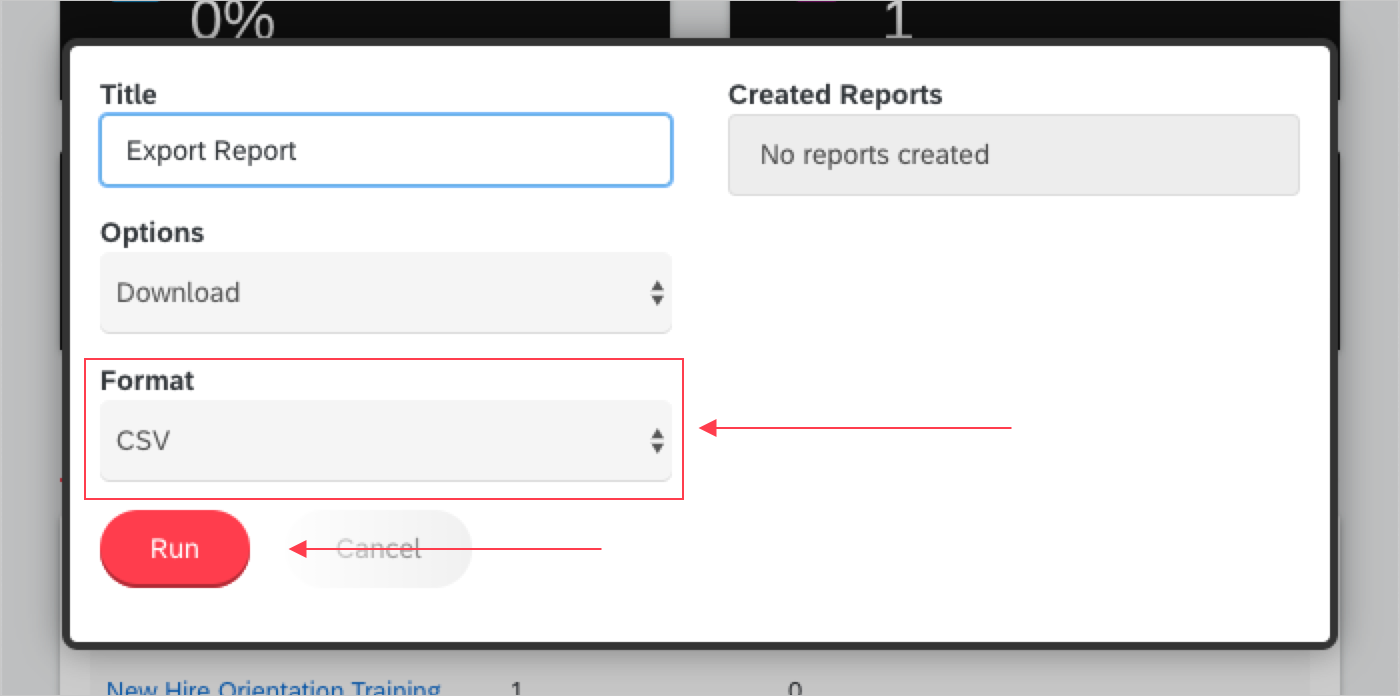
Or select 'Schedule' from options available in the 'Options' field dropdown menu.
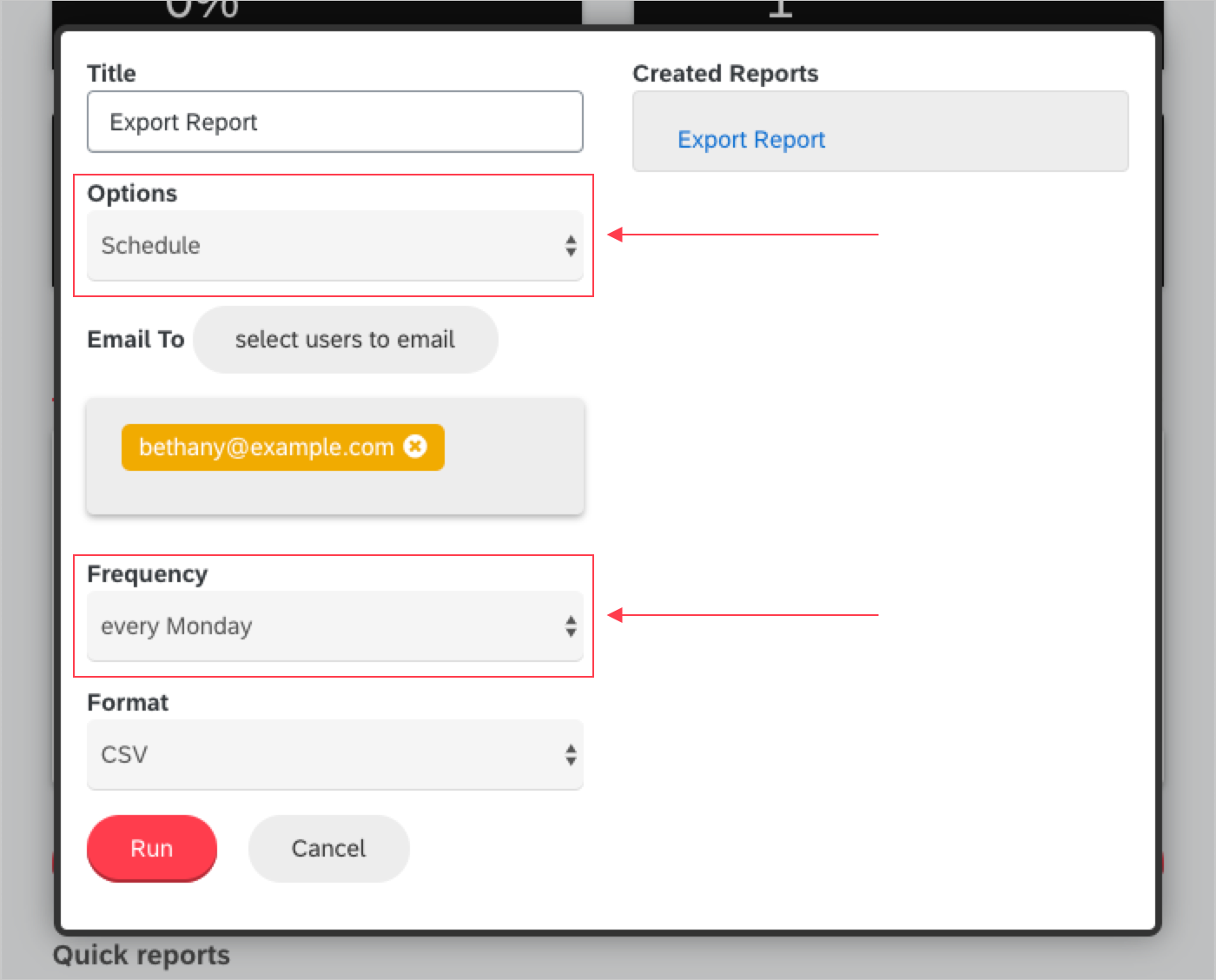
Workflow Tip: Your email address will appear in the Email To field.
Step 6.
To add others to the report distribution list, enter additional email addresses in the Email To field.
Step 7.
Select the desired frequency from the options available in the Frequency dropdown menu.
Step 8.
Select CSV or PDF from options available in the Format field dropdown menu to export the report.
Step 9.
Click the 'Run' button.
Comments
0 comments
Please sign in to leave a comment.