
Effective August 17th, 2020, Audit Manager Professional will feature enhanced download capabilities.
- All reports will run independently in the background, so users do not have to wait for a report to finish before continuing to work in Audit Manager
- With the introduction of the download center, all reports will be stored in Audit Manager for easy management and retrieval
- Reports remain in storage until they are deleted by a user
Using the Download Center
Step 1: Generate Report
After selecting a report to generate, users will receive a confirmation in the bottom left of the screen indicating that the report is processing. As the report processes, the user may continue navigating in Audit Manager as they choose, instead of locking the screen and waiting for reports to generate.
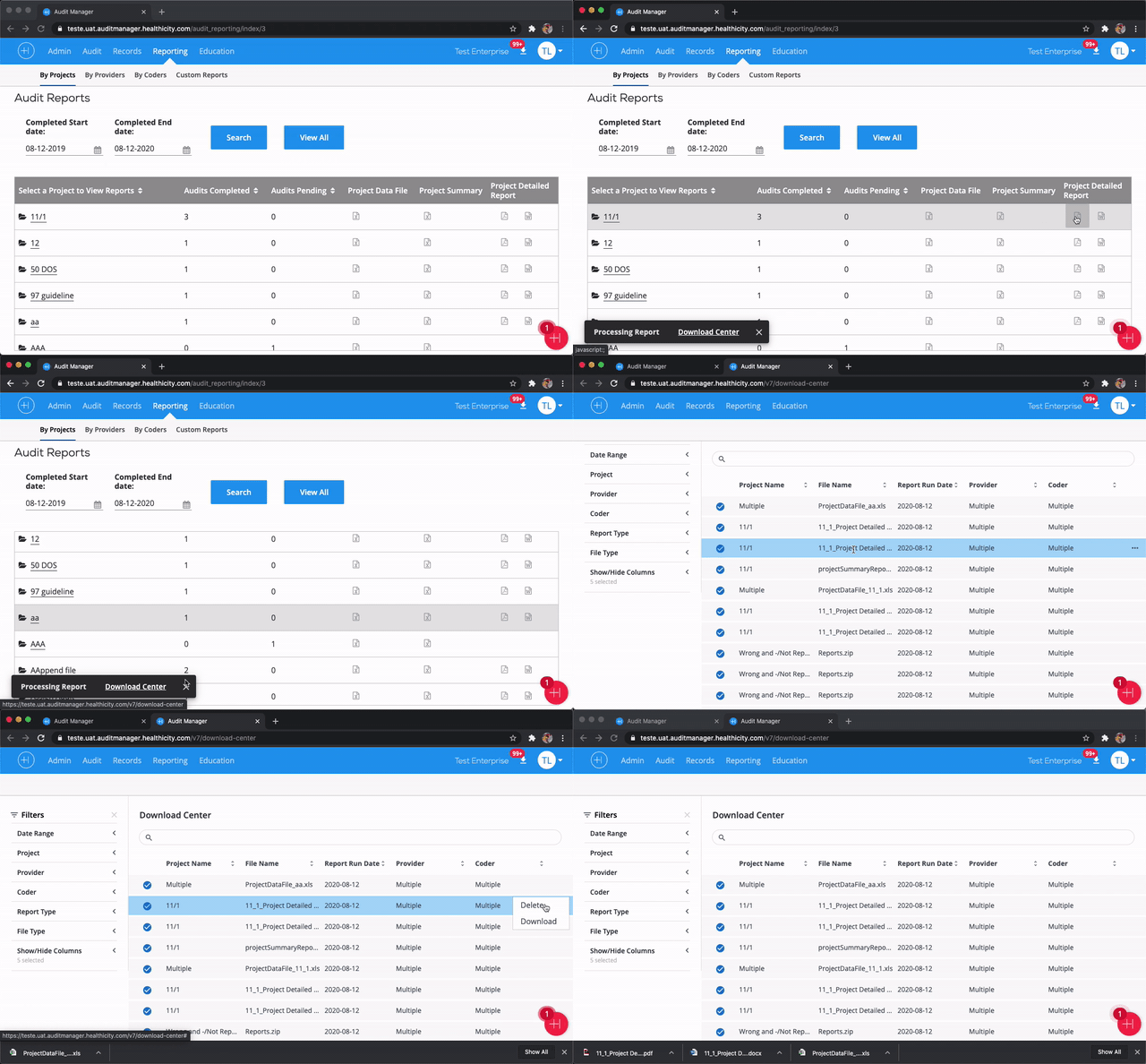
Step 2: Access Processed Report
When the report is complete, a notification badge next to the download center icon will show that the report is ready to be downloaded. The number on the badge indicates the count of reports that have not been downloaded. To download the report, simply open the download center widget, and click the download option.
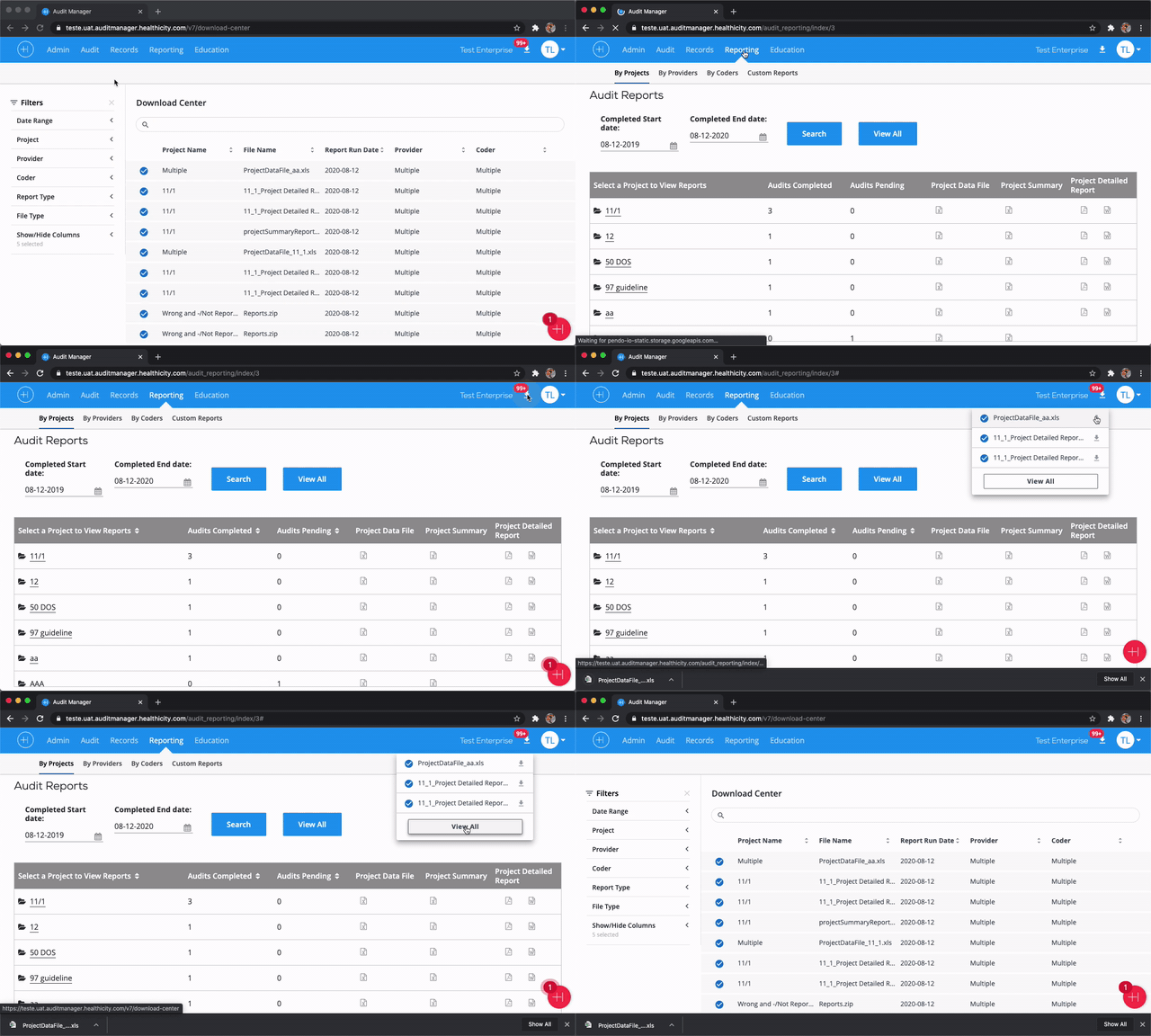
or View all Available Reports
To access reports available but not displayed in the download center widget, click on the 'View All' button to be directed to the Download Center queue page. Here all reports are stored and can be managed, deleted or downloaded.
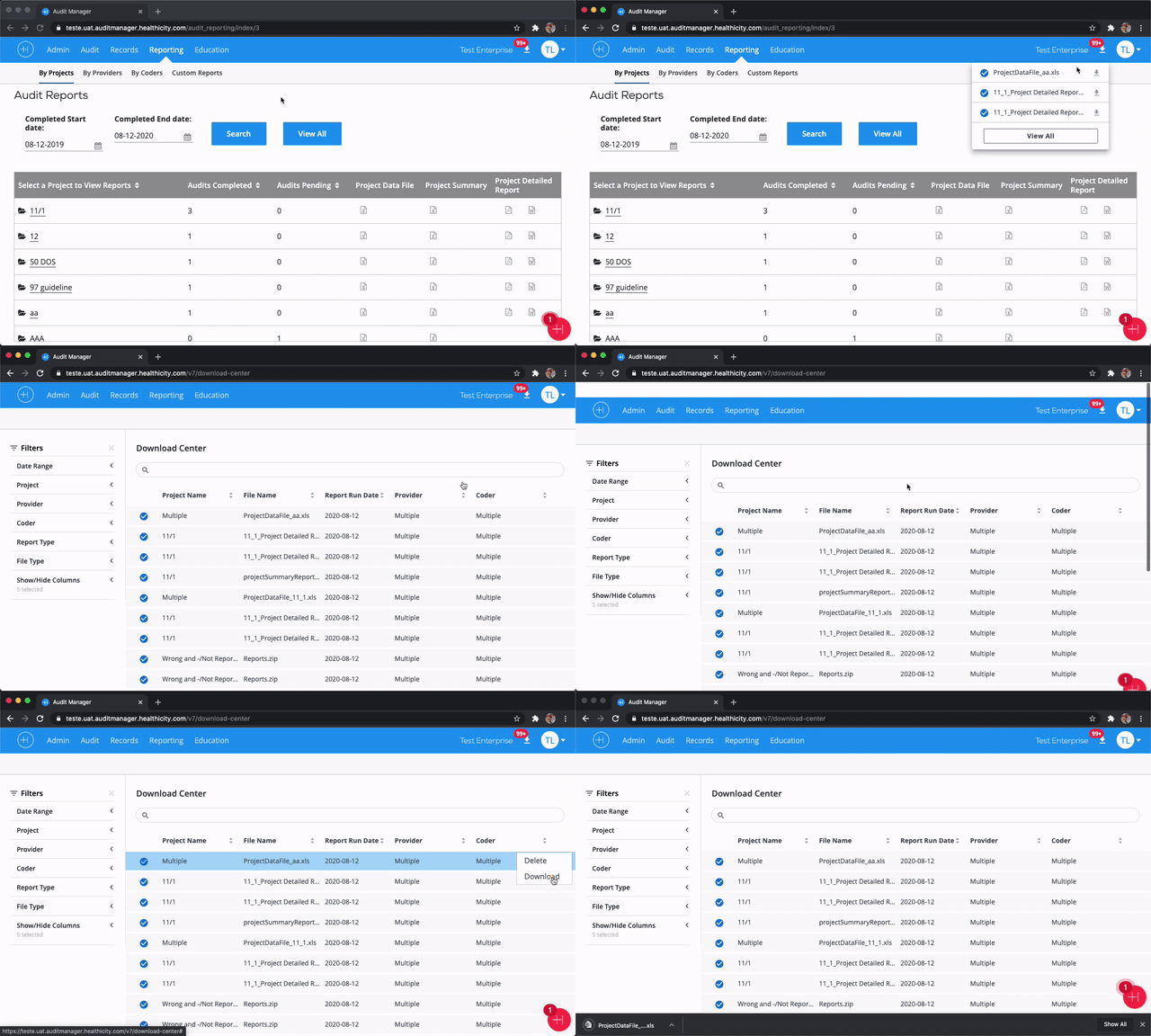
The Download Center Queue Page
When loaded, the download center will display all reports in order from most recent to least recent. The following fields are available, and can be toggled on or off in the queue table under the 'Show/Hide Columns' option found in the filter panel:
- Project Name
- File Name
- Report Run Date
- Provider
- Coder
- Auditor
- QA
- Report Type (e.g. Project Detail Report, Worksheet Detail Report)
- File Type (e.g. xls, csv)
All fields are sortable.
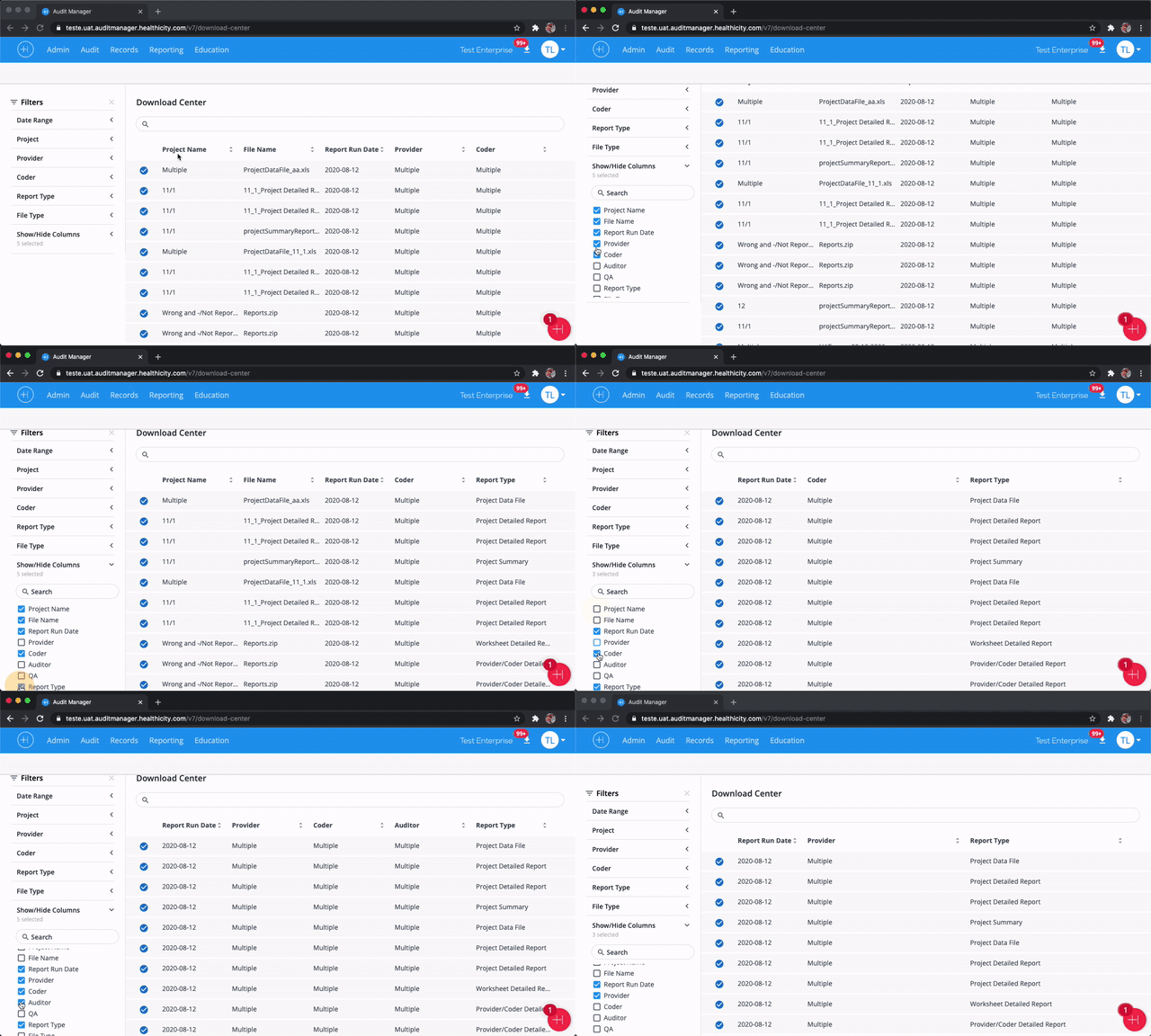
Searching in the Download Center
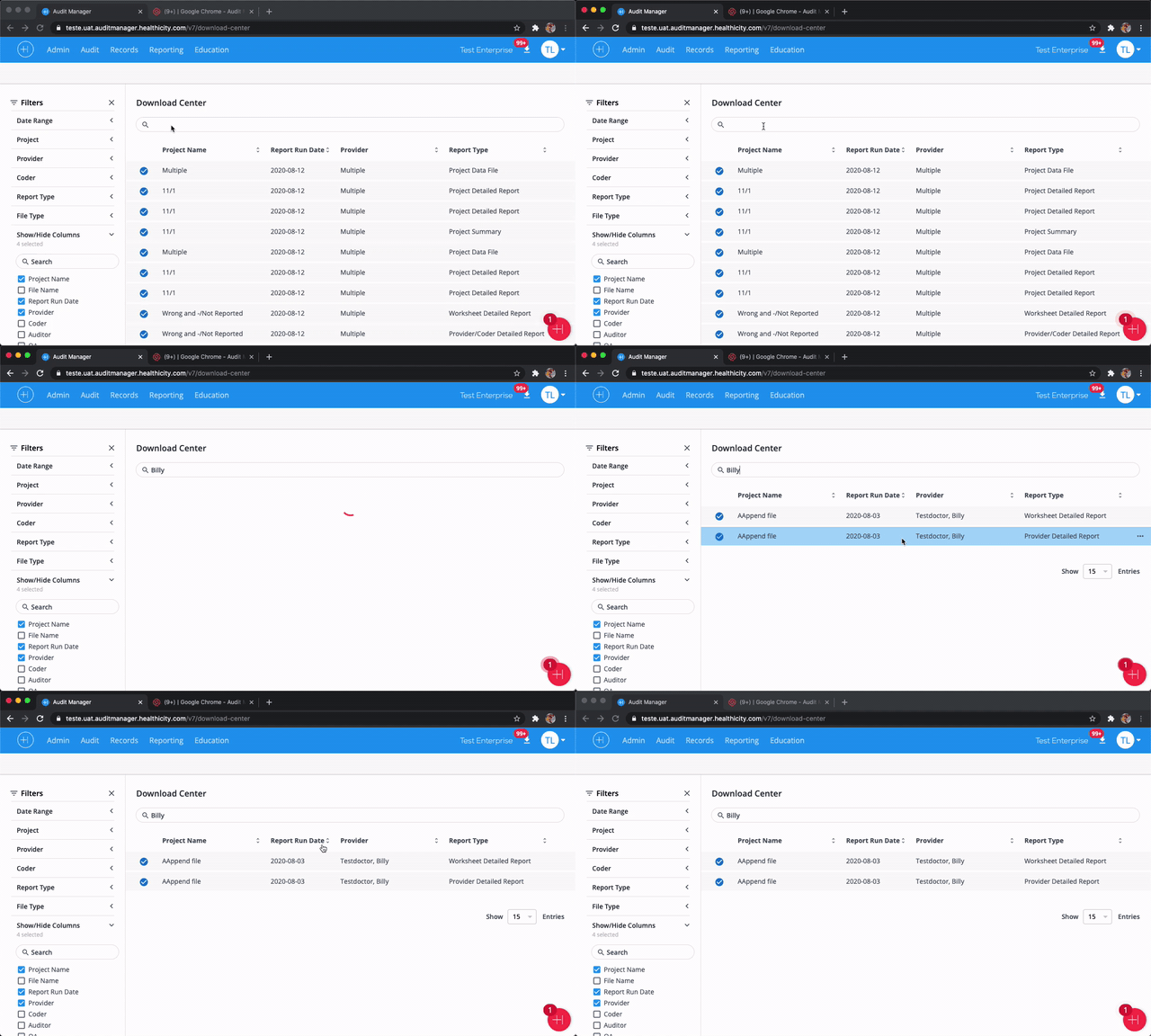
The download center also features a search function, so specific files can be found. The search function keys on the values in the columns above. For instance, a search on a provider's name will return all of the reports for that provider.
Filtering in the Download Center
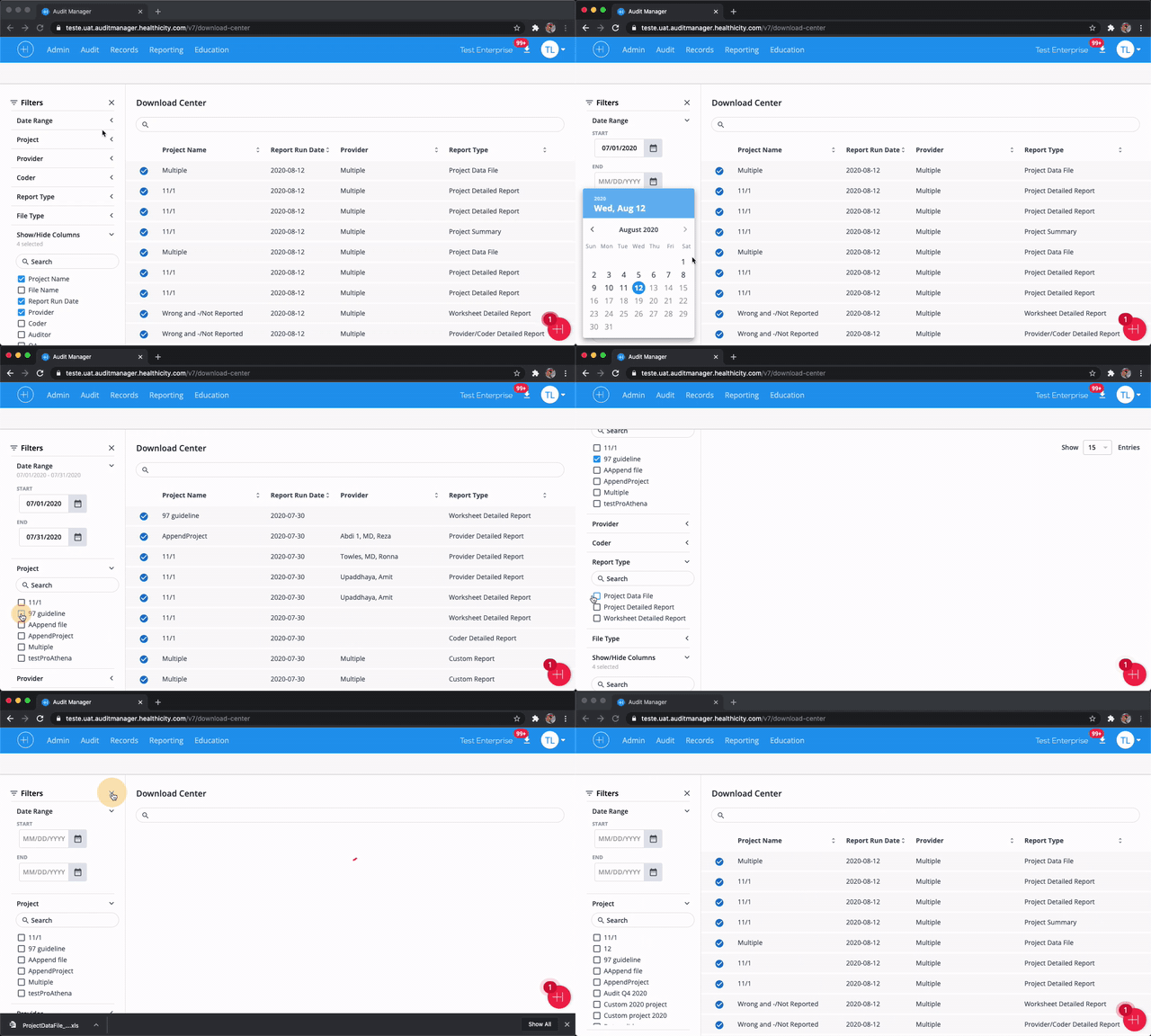
In addition to searching, filters are available to help find reports as well. Filters also key off of the values in each column plus provide a way to filter reports by date. An example of using filters would include specifying a date range, provider and report type.
Filters can be cleared by clicking the 'X' option at the top of the filter list.
Pro tip: If your filter list is too long to scroll through, try a search within the filter for the required value.
Files and Maintenance
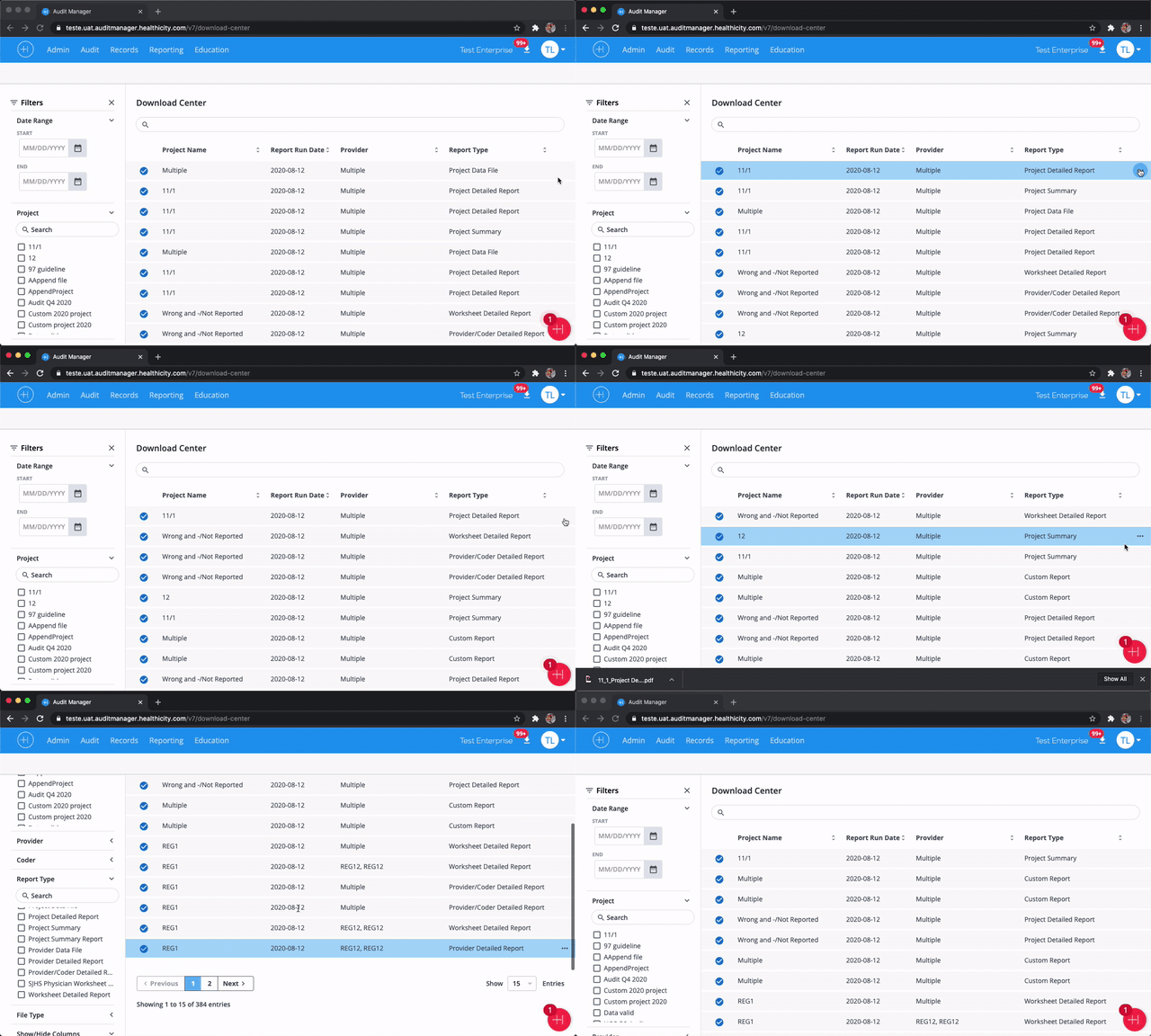
Reports will remain in the download center until they are deleted by the user. To delete reports, select the more menu found in each row of the table and select the option to delete the file. Deleted reports are permanently deleted and cannot be retrieved.
Reports can also be downloaded from the Download Center page. To download a report, select the more menu and then select the option to download the file.
Comments
0 comments
Please sign in to leave a comment.