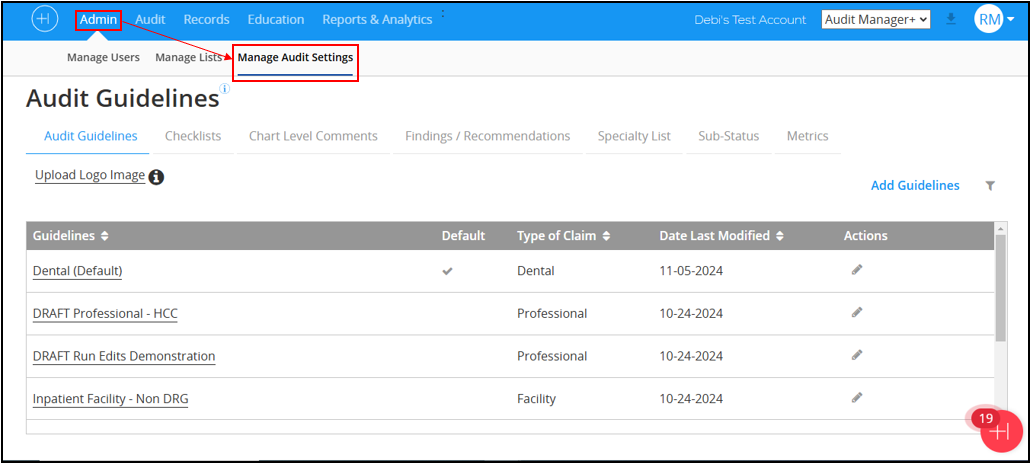
The Manage Audit Settings section of the Admin option offers a centralized place where users can configure essential audit settings, customize different types of audits, and ensure consistency throughout the audit process. This section includes options to customize projects, choose the elements shown in the audit worksheet, assign various rules, create instructions for auditors, and set up reports. Here’s an overview of each component:
-
Audit Guideline: Default guidelines help create procedures for different types of audits. Guidelines enable the development of specific instructions for each project to ensure consistency among auditors. Refer to 'Working with Audit Guidelines' for more details.
-
Checklists: Use checklists to increase accuracy, consistency, and efficiency. Refer to Working with Checklists for more details.
-
Chart Level Comments: Predefined comments provide auditors with tools to add more detail to audits, enabling quick documentation of findings in a standardized format. Refer to Working with Chart Level Comments for more details.
-
Key Finding/Recommendations: It allows users to define critical insights and actionable recommendations identified during the audit. Refer to Working with Key Findings/Recommendations for more details.
-
Specialty List: Standard but customizable list of specialties to accurately identify the auditee's areas of specialty. Refer to Working with Specialty List for more details.
-
Sub-Status: Create and manage your own unique sub-statuses to supplement the basic list of statuses in Audit Manager. This feature allows organizations to define more granular classifications supporting the clarity and precision of audit workflows. Refer to Working with Sub-Status for more details.
-
Metrics: Metrics capture key performance indicators and audit outcomes. Users define the metrics they want to apply to individual projects. Metrics allow users to track and analyze coding effectiveness over time. Refer to Working with Metrics for more details.
-
Upload Logo Image: Personalize audit reports and interfaces by uploading a logo, ensuring brand consistency in all audit-related documentation. Refer to the Upload Logo Image for more details.
© Healthicity, LLC

Comments
0 comments
Please sign in to leave a comment.