
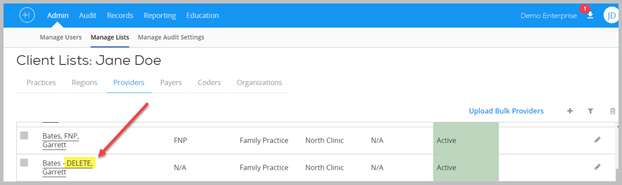
Step 1: Before deleting any audits for a provider, edit the provider’s name and include a key word (ie. DELETE) to help identify that provider and prevent mistakenly moving audits from the wrong provider.
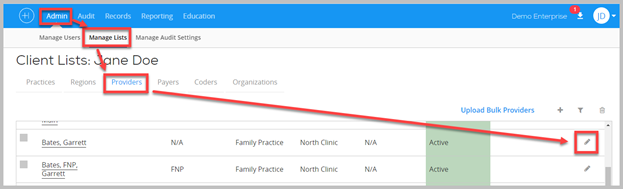
- Go to Admin > Manage Lists > Providers
- Click edit pencil to left of provider you want to eventually delete
- Add “Delete” to the Last Name of the provider you want to delete.
Step 2: Switch all audits from the duplicate provider to the one provider you want to keep.
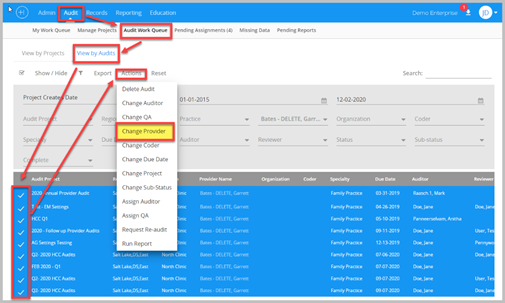
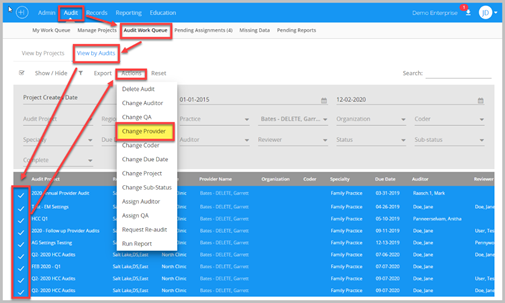
- Go to Audit > Audit Work Queue > View by Audits
- Critical: Expand the Project Created Start Date to a date prior to when your organization began using Audit Manager. (this will ensure you see ALL audits and move ALL audits, otherwise you may delete an old audit mistakenly)
- Use the funnel icon to filter on the provider you want to move
- Check the box to left of duplicate provider’s audits
- Click Actions > Change Provider > Select the Provider you want to keep
Step 3: Delete the Duplicate Provider
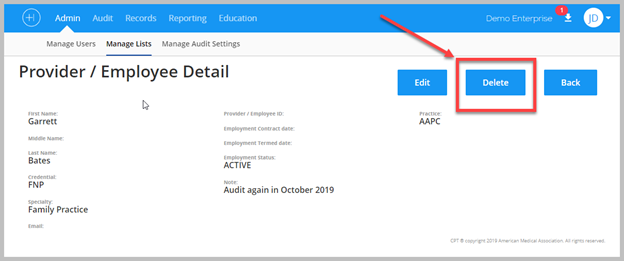
Once all audits for duplicate provider have been moved to the Provider you want to keep you can delete the duplicate provider.
- Go to Admin > Manage Lists > Providers
- Click on the duplicate provider name
Comments
0 comments
Please sign in to leave a comment.